
The Agreements feature lets you publish documents, terms and conditions, training policies, hire agreements, safety briefings, and ask the right people to read and respond to them. Every response is recorded, with a full audit trail and (optionally) a confirmation code sent by email so you can prove who agreed to what, and when.
This page is aimed at office staff and instructors who manage agreements day-to-day.
To enable the feature and its options, go to Admin > Agreements.
What an agreement looks like
An agreement is a piece of content with a title, a body (the text people read), and optional attachments such as PDFs or scanned forms. You write it in the normal editor, save it as a draft, then publish it when you're ready for people to start responding.
Once published, the agreement appears in the Agreements tab of every person it applies to. They can read it, and either Agree or Disagree. Their answer is recorded against the exact version of the document they saw.
Choosing who has to respond
Each agreement targets people in one or both of these ways:
- By role. Pick one or more roles — Member, Student, Renter, Instructor, and so on. Everyone with that role will be asked to respond. New people joining the club later, who are given that role, will automatically be added to the list and prompted.
- By name. Add specific people individually. This is useful for one-off agreements, or for agreements that only apply to a single named person (for example, evidence of training discussed in a one-to-one session).
You can combine the two. For example, you might target all Students by role, plus one specific Member who has just started ground school.
Different agreements for different people
Because agreements are role-targeted, you can have a different mix of documents for each kind of person in the club. Most people will only see the club's general terms and conditions. Students might see an extra document about what to expect during training. Renters might see a separate agreement covering solo hire. Instructors might see one about their responsibilities.
When someone's role changes — for example, when a student passes their Skill Test and becomes a Member — the system re-checks which agreements apply and prompts them for anything new.
Grandfathering existing members
When you publish a new agreement you don't always want to bother people who've been at the club for years with paperwork. Each agreement has an optional Applies to users created after date. Set it to today, and only people who join from now on will be asked to respond. Existing members keep flying without interruption.
People you name individually on an agreement are always asked, regardless of this date.
Versioning and history
Every time you edit an agreement, the system keeps the previous version. If anyone has already agreed to the old version, you'll be asked whether to migrate their responses across to the new version (sensible for small wording fixes — typos, formatting), or start fresh (sensible for genuine policy changes, where you want everyone to read and confirm the new text).
The Agreements tab on each person's profile records the full timeline: which version they saw, when the confirmation code was sent, when they entered it, and when they agreed (or disagreed). If a member of staff submitted the response on someone's behalf, that's recorded too, along with any attached evidence.
Agreements that have responses against them can't be deleted — you'd be deleting evidence. Instead, these are archived. They stay in the system for the audit trail but no longer appear in anyone's outstanding list.
The confirmation code (optional)
There's a club-wide setting that controls whether agreeing requires a 6-digit confirmation code. When it's on, here's what happens:
- The person clicks Agree on the agreement page.
- The system emails them a 6-digit code.
- They enter the code on the next page to confirm.
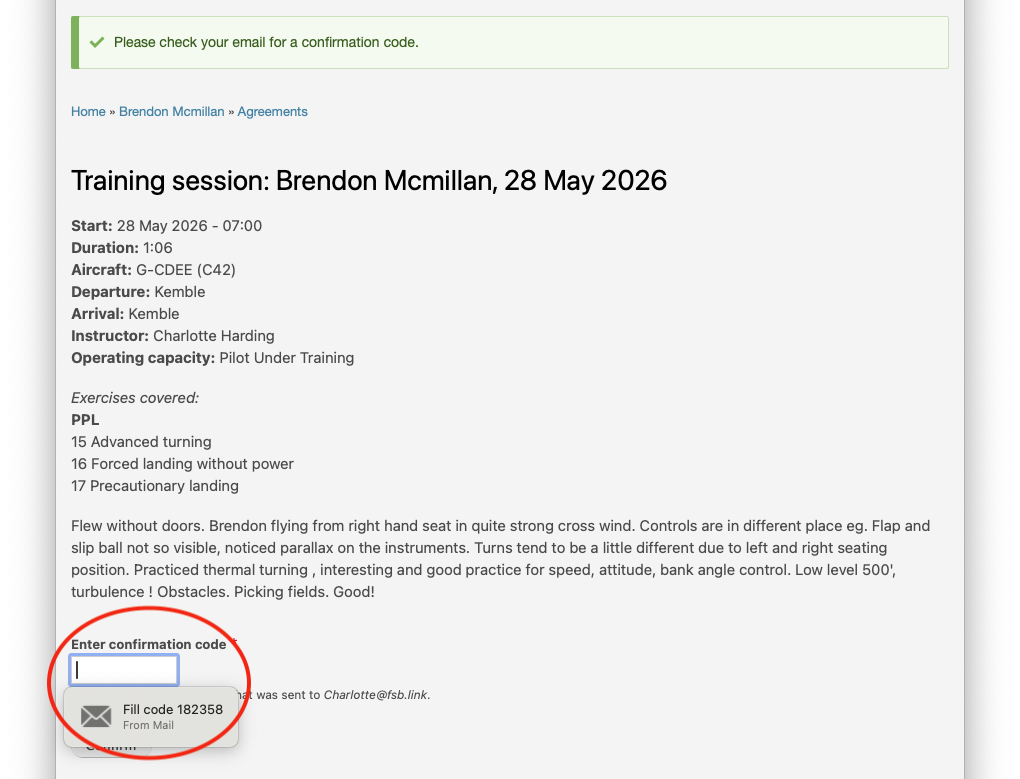
This gives you a stronger record. You can show that the person had access to the email account on file at the moment they agreed, not just that someone clicked a button while logged in.
To avoid pestering people repeatedly during a single session, there's a short bypass window (5 minutes by default). If they've just logged in, or just entered a code on another agreement, they won't be asked for one again straight away.
If they choose Disagree instead, no code is needed — disagreements are recorded immediately.
You can turn the confirmation code requirement off entirely from the Agreements settings page if you prefer a lighter-touch process.
Outstanding agreements block bookings
If a person has any agreements still waiting for a response, two things happen:
- A banner appears at the top of every page they visit, listing what they need to deal with and linking them straight to it.
- They cannot make or take part in a booking until the outstanding agreement is resolved. This applies to anyone involved — the member, the instructor, the student, the pilot taking the aircraft.
Office staff get a warning rather than a hard block, so you can still help people in person, but it's a strong nudge to get the paperwork done first.
Email reminders
Anyone with outstanding agreements gets an email reminder. The first one goes out roughly half an hour after the agreement is published (or after they're added to its audience), and it repeats once a week for up to three weeks. These timings are configured under Admin > Reminders & Follow-up, as is the content of the email.
The reminder is a single email per person listing all their outstanding agreements, not one email per document, so people aren't flooded.
People can opt out of agreement reminders from their account settings if they wish — though they'll still see the banner when they log in, and they'll still be blocked from booking.
Responding by email link — even without an account
Some people you want agreements from don't log into the booking system regularly, or at all. Anyone the agreement applies to gets a secure link in their reminder email that takes them straight to the response page, no login required. The link is unique to them and valid for seven days.
This is useful for, say, a guest pilot who needs to acknowledge club rules before a one-off hire, or a parent of a younger student who needs to consent to something.
Responding on someone else's behalf
Sometimes you'll have a signed paper copy that you want to record in the system — for example, a student signed a printed training agreement at the airfield. Instructors and trusted office staff can record an agreement on someone else's behalf:
- Open the person's Agreements tab and pick the agreement in question.
- Tick Do you have proof [name] agrees to the above?
- Describe where the proof is kept (e.g. "Scanned signed copy attached" or "Original held in member's paper file").
- Optionally upload a photo or scan of the signed document.
- Submit.
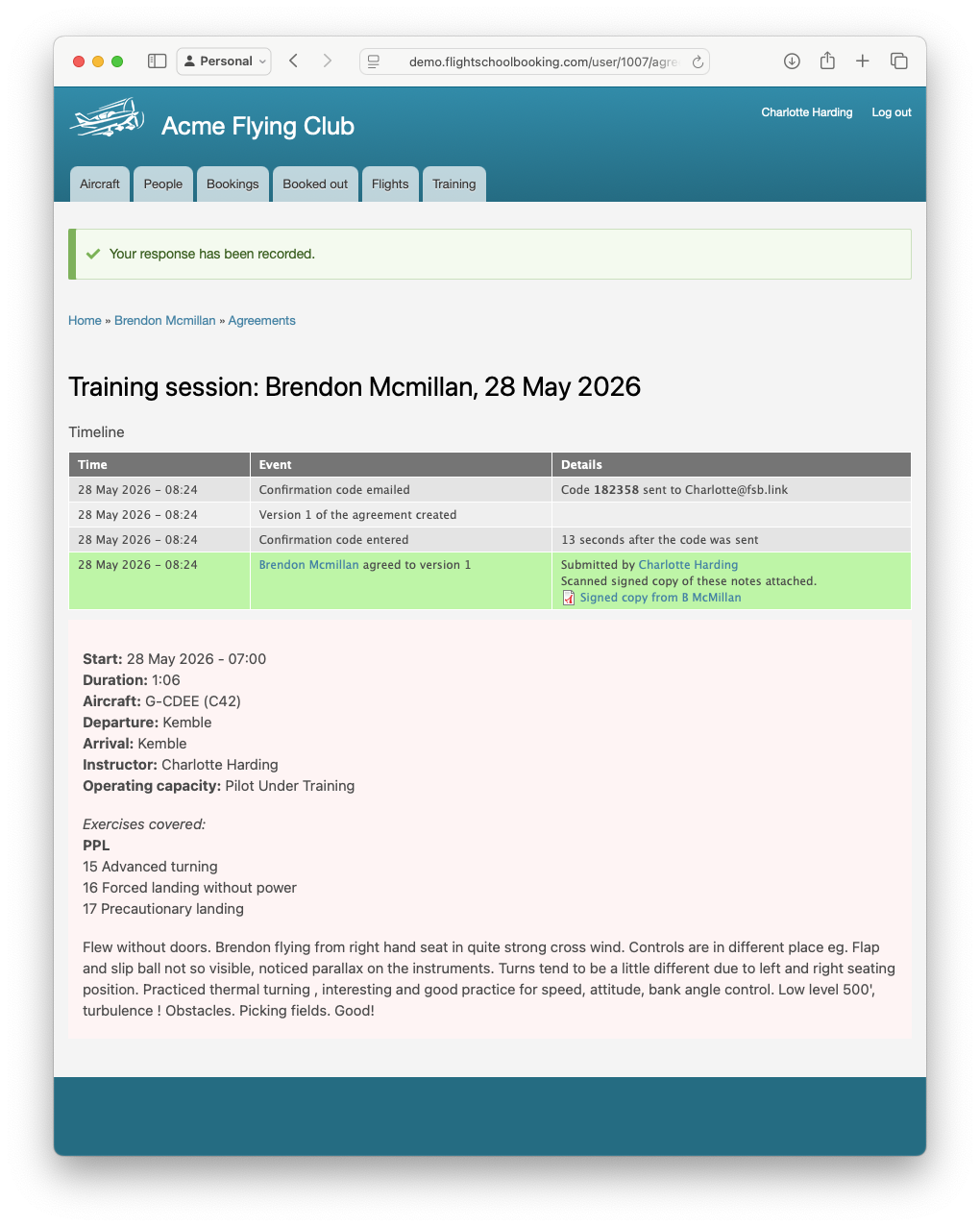
The system records who actually submitted the response, separately from who the response is for. So the audit trail clearly shows the instructor recorded the agreement, with their evidence note and any attached file.
This is controlled by the Record agreement (On Behalf Of) permission — by default, only office staff have it; ordinary members don't. You may wish to extend permission to your instructors, or set up a new role with this permissions and add trusted people to it.
Integration with training records
When an instructor saves a training note for a student, they can have the system automatically turn that note into a personalised agreement, addressed only to that student. This is useful for recording that the student has read and accepted what was discussed during a debrief.
The training entry's text becomes the body of the agreement. The student is then prompted to agree (with or without a confirmation code, depending on your setting), and the response is linked back to the training session.
There's a club-wide setting that controls whether this is off, optional (instructor sees a checkbox they can untick) or always on (every training note creates an agreement).
If the training entry is later edited, a new version of the agreement is created and the student is asked to re-agree if the changes are material.
Managing agreements
The Agreements section in the main menu lists every agreement and lets you create, edit and archive them. You can see the count of responses against each, and drill into the timeline of a single response.
A few practical tips:
- Start as a draft. Agreements are not visible to anyone other than staff by default. Get the wording right, get a colleague to read it, then add people by role or individually.
- Use roles, not names, where you can. Targeting by role means new joiners are automatically picked up. Naming specific people means you need to remember to add anyone new.
- Set the "applies to users created after" date when you don't want to disrupt existing members.
- Migrate responses for minor wording fixes; start fresh when the meaning has changed and you genuinely want re-agreement.
- Attach the original PDF to the agreement itself if there's a formal document people should keep a copy of.