
The platform provides a notice board which you can use to keep your customers updated about such things as runway conditions, fuel test status and local weather.
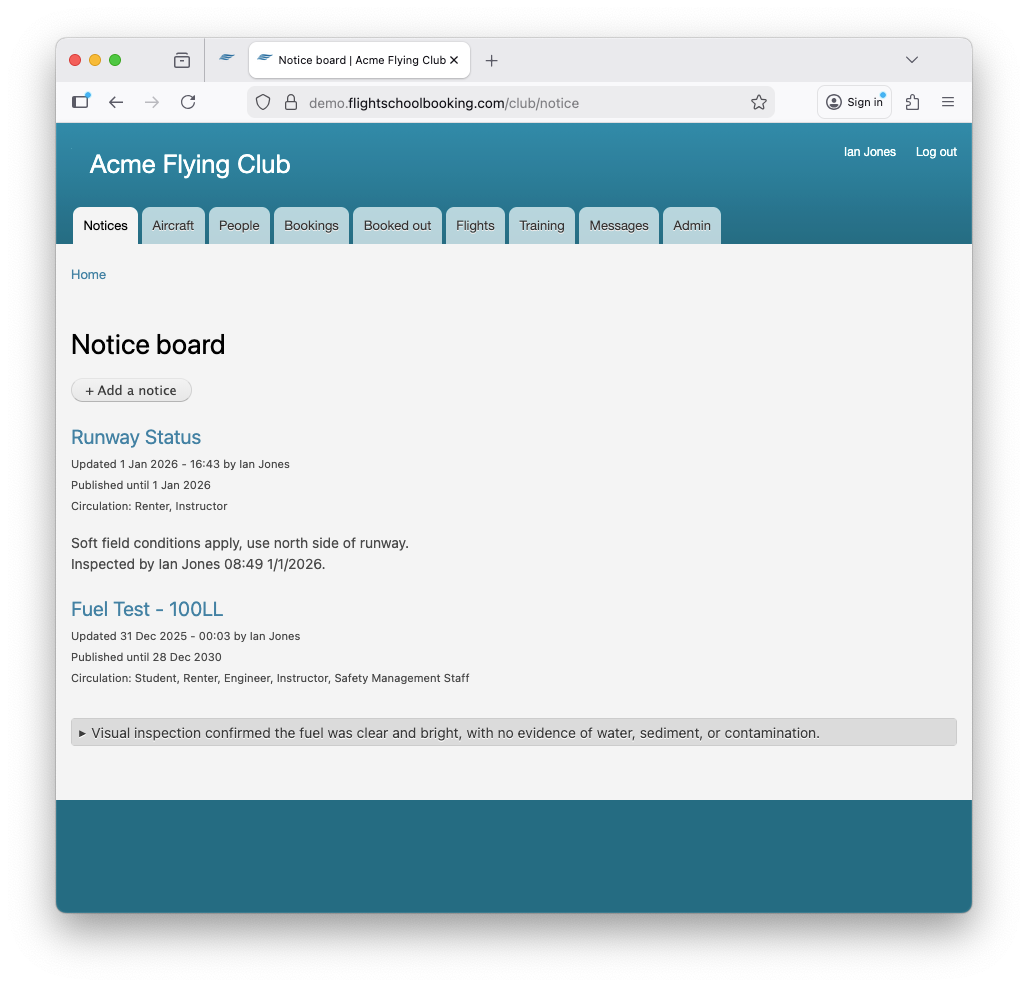
Enable the feature under Admin > Notice board. This will add the Notices tab to staff only. Regular users will see the tab appear if any notices are posted for them to read.
You create a notice from the Notices tab.
Note: Only Office staff can create notices unless you change the default permissions.
To create a new notice or to view previous ones, click the Notices tab.
The notice board displays a complete list to office staff, but a filtered list to everyone else. Regular users only see notices they have been allowed access to, and do not see any expired notices.
To create a new notice, click the button + Add a notice. The following fields should be set:
- Title
- Body. You can use the formatting buttons at the top of the edit box to choose text styles, insert images and links. Note the Edit summary link above the field. Use this if you want to write a long notice and give a short summary.
- Valid until. Choose a date after which the notice will expire. For things like weather, this should be the current date.
- Visible to. Choose which group(s) of people are able to view the notice. A customer with any one role you choose will be able to view it.
Once saved, the notice appears in the list as shown in the example above. Once expired, the notice is removed from customers' lists. It can be edited for about a week after expiry, allowing you to treat a notice as a kind of template to be edited and re-used with fresh information. Changing the validity date will re-publish it until then.
Permissions
There are permissions settings under People > Permissions
- View the Notices tab. People with this permission will see the Notices tab once a notice has been added for one of their roles. The tab is hidden until then to avoid clutter.
- Post notices. Usually reserved to office staff only. If someone in your organisation will be responsible for posting notices, but should not be given full office staff access, create a new role first, and assign this permission to the new role. Then assign the role to whoever you would like to create and maintain the notices.